Go Back To Home
Personal Project · October 2024 - Present

Quippy - The Quick Find Tool

A lightweight Chrome extension that brings instant text conversions and lookups to your fingertips. Select any text, press Ctrl+Shift+Q, and get answers without leaving your page

Live on Chrome Web Store

Project Vision

Quippy eliminates tab-switching for simple conversions and lookups. Select any text, anywhere — Gmail, Docs, Slack — press Ctrl+Shift+Q, and get instant results without leaving the page or losing your flow. No personal data collected, ever.

Role
Product Design, UX Research, UI Design, Frontend Development, Testing
Timeline
October 2024 - Present (3 months)
Project Type
Personal Product · Browser Extension
Tech Stack
HTML, CSS, JavaScript, Chrome Extension APIs
Status
Live on Chrome Web Store
Design Tools
Figma, AI-assisted development (ChatGPT, Claude)

Is there a need for Quippy really?

In my daily work, I kept switching tabs to Google for small tasks — converting currencies, checking timezones, translating phrases, looking up word meanings. Every lookup broke my flow: new tab, type, search, scan, navigate back.

At the Figma Makethon, I prototyped a fix: select any text, press a shortcut, get instant results in place. When I shared it on LinkedIn, people asked if they could actually use it — that response pushed me to build it for real. With ChatGPT and Claude as coding partners, I took Quippy from prototype to shipped product during my career break.

All the current problems

Through observation of my own workflow and conversations with potential users, I identified five key pain points that were consistently disrupting productivity:

01

Context Switching Disrupts Flow State

Repeated tab-switching breaks concentration, and each interruption costs mental effort to recover from

02

Multi-Step Process for Simple Tasks

A simple conversion means five steps — new tab, type, search, scan, navigate back — repeated dozens of times a day

03

Lost Time Compounds

30 seconds per lookup, 20+ times a day, adds up to 10+ minutes of pure friction — before counting the cost of losing focus

04

Fragmented Tool Ecosystem

Currency, timezone, units, and translations each live on a different site or app, with no single place to reach them

05

Existing Solutions Fall Short

What exists is either too complex, too narrow, or still pulls you off the page you're on

Understanding User Needs

After the LinkedIn response, I ran a structured survey to validate the idea — 50+ responses from designers, developers, writers, marketers, and business professionals.

Currency, timezone, translation, and unit conversions came up most as friction points, alongside quick word definitions while writing. The key insight: people didn't want another tool to learn. They wanted something fast, lightweight, and always there.

Top Requested Features

Currency conversion for international work, shopping, and travel planning
Timezone conversion for coordinating meetings across countries
Quick translations without opening Google Translate
Unit conversions (temperature, area, volume, design units)
Word meanings and synonyms for writing tasks
Calculator for quick math without interrupting work

User Pain Points

Tab switching breaks concentration and flow state
Existing tools require too many clicks to access
Need something that works across all websites uniformly
Want keyboard shortcuts for power users
Should be fast, lightweight, and not resource-heavy
Privacy concerns with tools that track usage data

Key Research Insight

"I don't want to learn a new tool. I just want my simple tasks to happen instantly, wherever I am, without thinking about it." — Survey Respondent

UX Strategy & Core Interaction Model

Research pointed to one principle: zero friction, universal access, instant results. Quippy needed to feel like part of the browser, not a separate tool you have to "use."

Context-Aware

Automatically detects what you might need based on selected text (numbers suggest conversions, words suggest definitions)

Zero Learning Curve

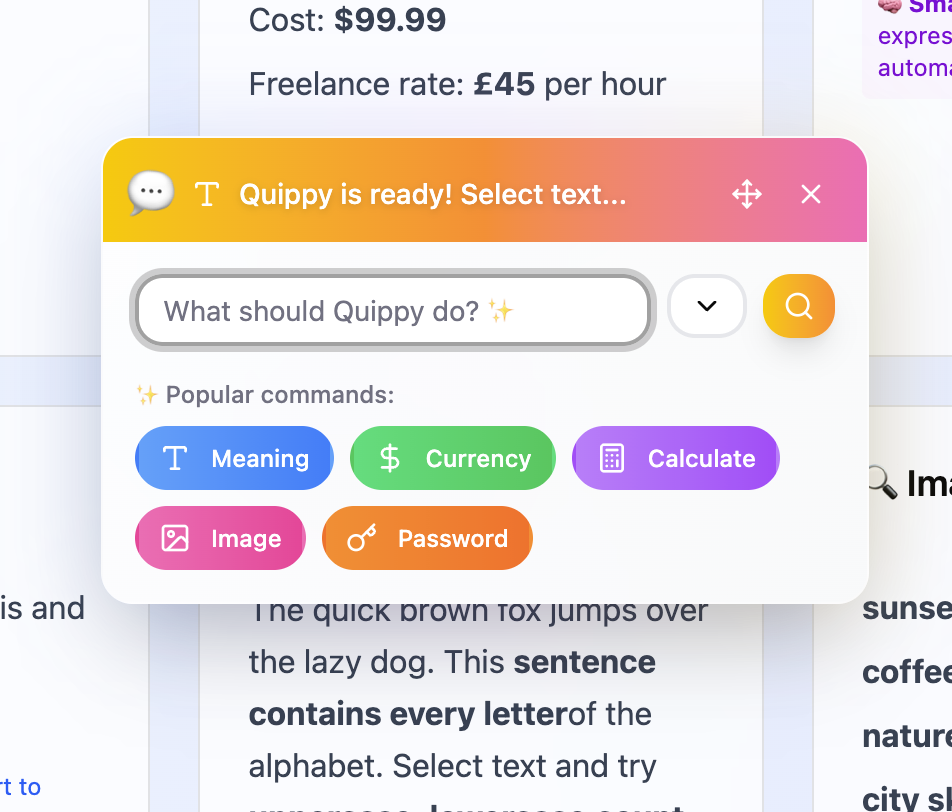
Select text → press shortcut → see results. No menus, settings, or configuration required to get started

Universal Compatibility

Works identically across all websites. Gmail, Docs, Slack, LinkedIn, news sites, anywhere you browse

Privacy First

No data collection, no tracking, no analytics. All conversions happen locally or through secure APIs

User Flow Mapping

I mapped the full journey from discovery to habitual use to find every friction point — the goal was an extension that stays invisible until needed, then instant.

Detailed user flow diagram showing interaction patterns

Complete user flow showing primary interaction pattern, edge cases, and error states

Core Flow: Text Selection to Result Display

1
Selection

Select any text on any webpage — mouse or keyboard

2
Activation

Press Ctrl+Shift+Q (Cmd+Shift+Q on Mac) — memorable and conflict-free

3
Context Detection

Quippy reads the selection and suggests the most relevant function — numbers to currency, words to dictionary

4
Display

A popup appears near the selection, pre-filled and ready

5
Results

Results appear instantly, with options to switch functions, copy, or dismiss

UX Design Decision: Keyboard-First Activation

Why keyboard shortcut instead of right-click menu?

Right-click menus mean moving the mouse, finding the option, clicking. A shortcut becomes muscle memory in 2-3 uses — nearly instant, and eventually automatic.

Why Ctrl+Shift+Q specifically?
  • Memorable: "Q" for "Quippy" and "Quick"
  • Accessible: Easy to reach with left hand while right hand is on mouse
  • Non-conflicting: Doesn't override existing browser or system shortcuts
  • Cross-platform: Works consistently on Windows (Ctrl) and Mac (Cmd)

Visual Design System

Before writing any code, I created a comprehensive design system in Figma. This system needed to feel professional and trustworthy while remaining lightweight and non-intrusive. The design had to work as an overlay on any website without clashing with existing page styles.

Design Decisions & Rationale

Color Palette

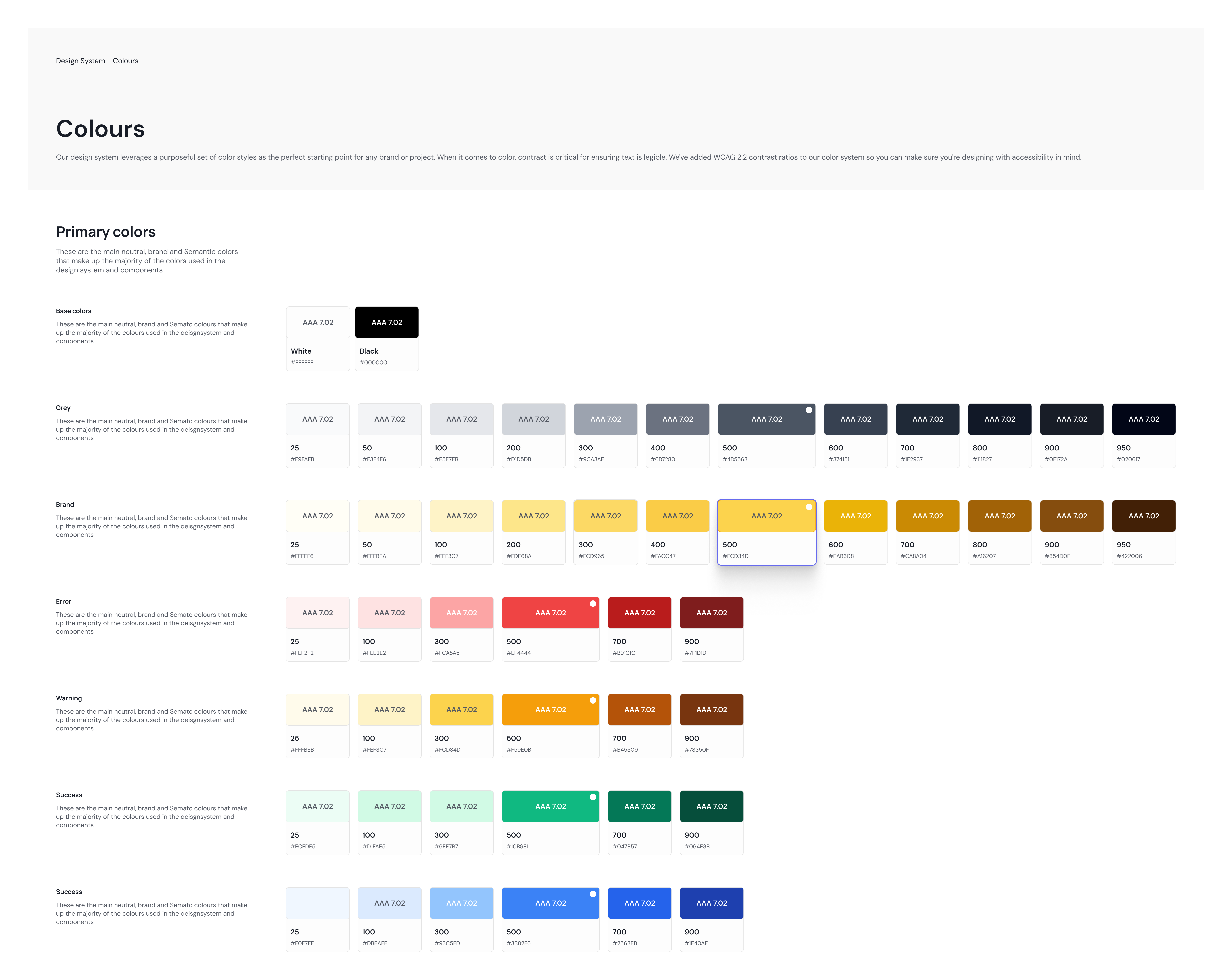
Quippy color palette showing primary colors with hex codes and design rationale

Rationale: Neutral base colors keep the popup readable on any website, while the accent carries hierarchy and personality without feeling aggressive. Every pairing meets WCAG 2.2 contrast, and success/warning/error colors communicate system states at a glance.

Typography

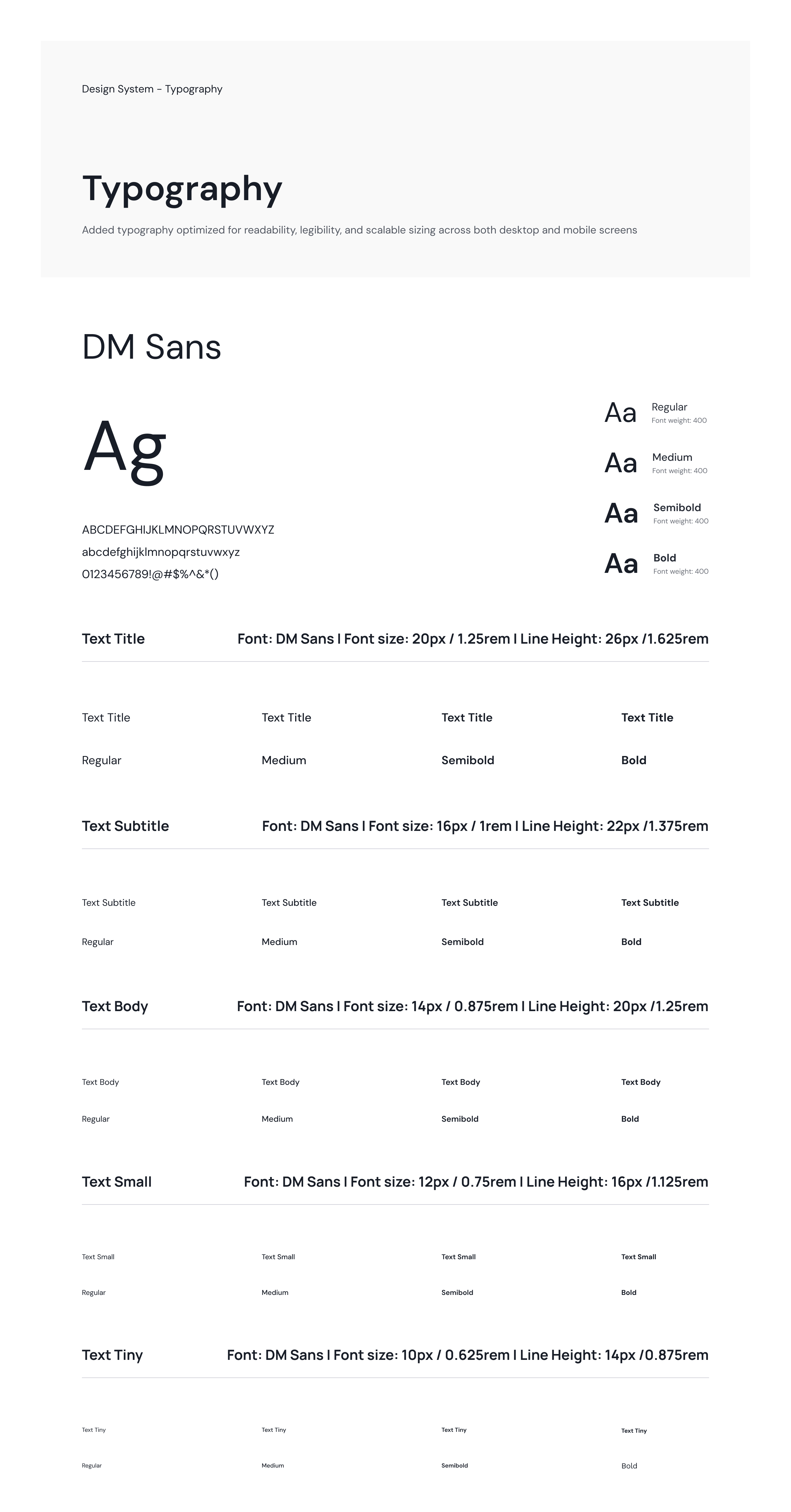
Quippy typography scale showing font family, sizes, and usage rationale

Rationale: DM Sans reads clearly at small sizes and keeps numbers unambiguous — critical for conversions. Four weights carry the hierarchy, and a modular scale from Tiny (10px) to Title (20px) keeps every text style purposeful and consistent.

Spacing & Layout

8px grid: all spacing in 8px increments for consistent rhythm

Compact by design: a 400px popup max-width keeps Quippy from ever overwhelming the page beneath it

Component Design

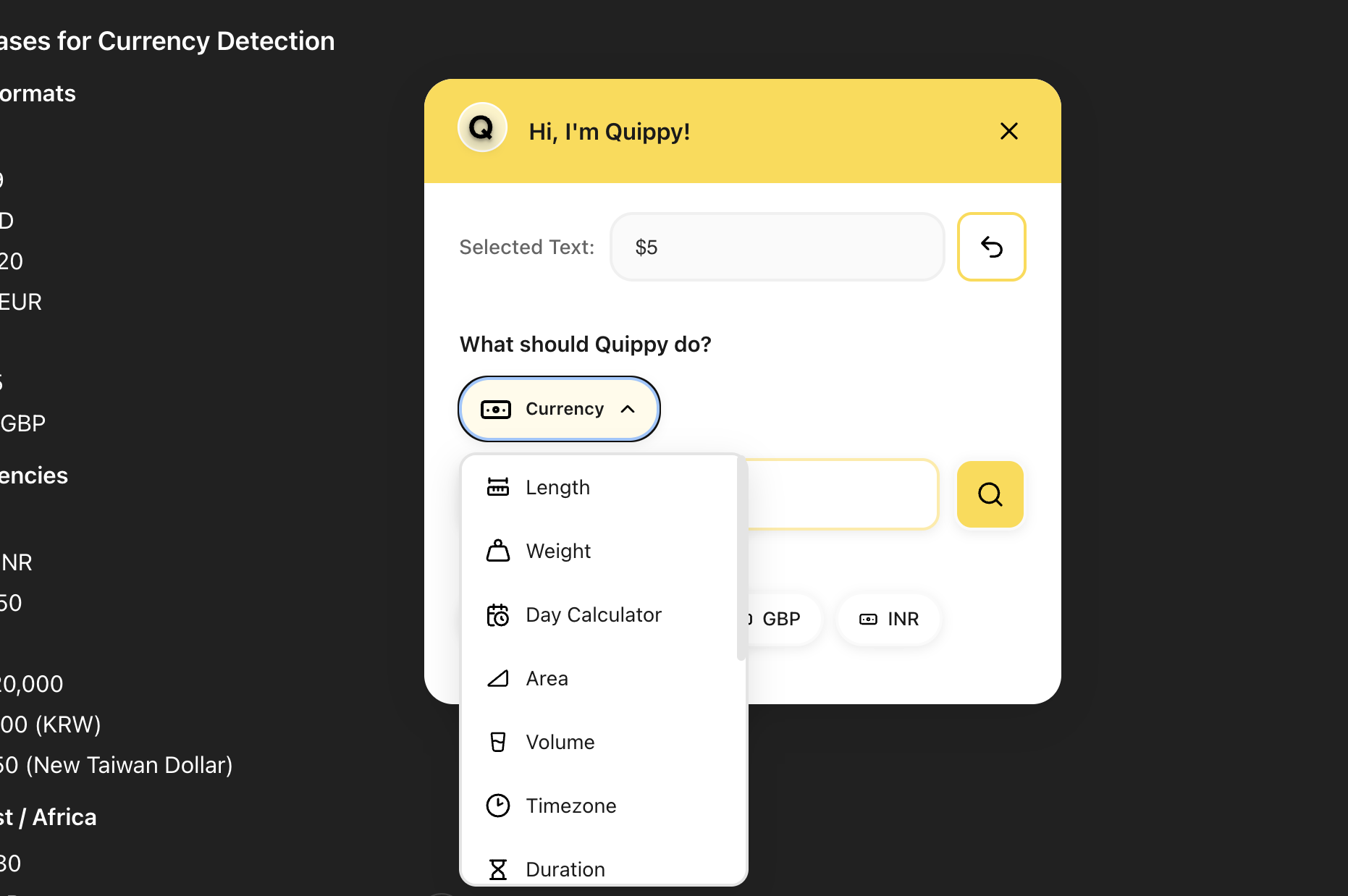
Dropdown function selector

Full-width, grouped by category with icons, so all 14 functions stay reachable without overwhelming the interface.

Input field

Pre-filled with the selected text but fully editable, so corrections don't require re-selecting. A 44px minimum target keeps it usable on mobile.

Results display

A large, color-coded result (green for solved, red for error, blue for info) sits above secondary detail, so the answer is the first thing you see.

Microinteractions

  • Animations: a 200-300ms fade + scale on open, quick enough to stay invisible
  • Hover & focus states: clear feedback on every interactive element, with visible focus rings for keyboard use
  • Loading indicators: a spinner sets expectations during API calls
  • Success confirmation: a one-second checkmark on copy

UI Design Decision: Light Theme as Default

Why light theme instead of dark?

Most productivity tools default to light themes, so Quippy's light interface blends in rather than fighting the page underneath. A dark popup on a light page would read as jarring. Dark mode, matched to system preference, is planned for a future version.

Core Features & UX Considerations

Based on user research, I designed 14 versatile functions covering the most common lookup and conversion tasks. Each feature was thoughtfully designed with specific UX considerations to maximize utility while minimizing complexity.

🧮

Maths

Perform quick calculations on selected mathematical expressions without leaving your page.

UX Consideration:
  • Handles +, -, *, /, ^, %, and parentheses, evaluating as you type
  • Keeps a calculation history for the session
📖

Meaning

Get definitions, synonyms, antonyms, and usage examples for any English word.

UX Consideration:
  • Definitions, synonyms, antonyms, and examples, labeled by part of speech
  • One click away for writers, students, and non-native speakers
🌐

Translate

Translate text between 100+ languages. Smart detection switches to dictionary mode for English words.

UX Consideration:
  • Auto-detects the source language and switches to dictionary mode when translating into English
  • Manual toggle available, powered by the Google Translate API
⚖️

Weight Conversion

Convert pounds to kilograms, ounces to grams, and more metric/imperial weight units instantly.

UX Consideration:
  • Metric-first preset dropdowns, with imperial available and one-click swap
  • Precise enough for scientific use, rounded sensibly for everyday use
📏

Length Conversion

Convert between meters, feet, inches, kilometers, miles, and other length units seamlessly.

UX Consideration:
  • Supports metric and imperial units, with smart detection from the input text
  • Useful for international projects, travel, and technical specs
📐

Area Conversion

Convert square feet, square meters, acres, hectares, and other area measurements.

UX Consideration:
  • Clear unit labels (sq ft, sq m) prevent mixing up length and area
  • Handles everything from real estate to large-scale acres and hectares
🫙

Volume Conversion

Convert liters, gallons, milliliters, cups, and other volume units instantly.

UX Consideration:
  • Covers metric (liters) and imperial (gallons), plus cooking units like cups and tablespoons
  • Useful for cooking, chemistry, and everyday liquid measurements
💾

Digital Unit Conversion

Convert between bytes, kilobytes, megabytes, gigabytes, terabytes, and other digital storage units.

UX Consideration:
  • Handles both decimal (KB, MB, GB) and binary (KiB, MiB, GiB) units
  • Built for developers and anyone working with file sizes
⏱️

Duration Conversion

Convert between hours, minutes, seconds, days, weeks — perfect for time calculations and project planning.

UX Consideration:
  • Auto-formats to the most readable unit — 90 minutes shows as 1.5 hours
  • Handy for freelancers billing hours and for project planning
📅

Date/Day Conversion

Calculate days between dates, find dates in the future or past, and convert between date formats.

UX Consideration:
  • Calculates days between two dates, or finds a date X days out
  • Handles multiple date formats for deadline and project planning
🌍

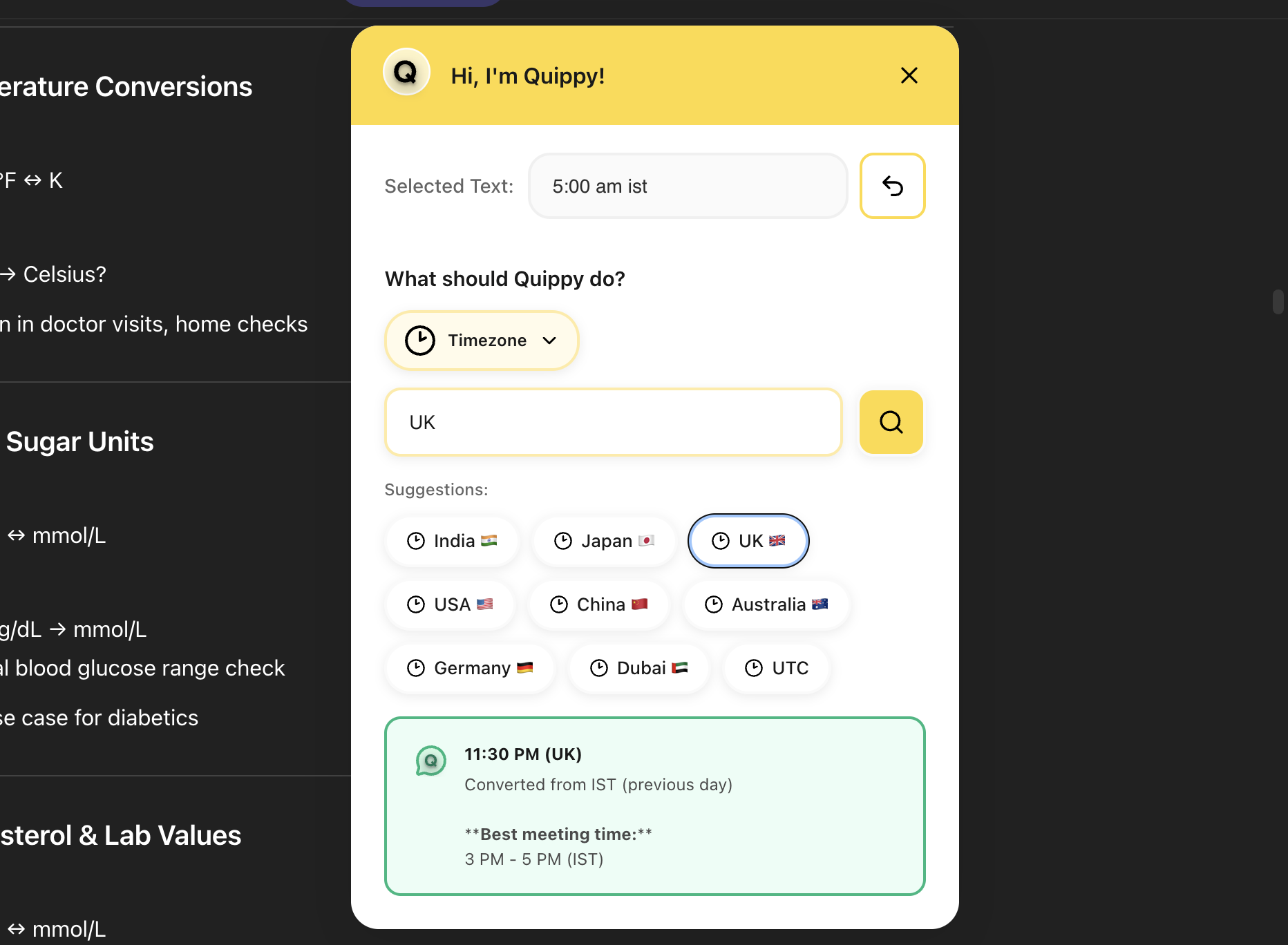
Timezone Conversion

Check current time across different timezones. Supports country names, cities, and UTC offsets. Includes meeting time scheduler.

UX Consideration:
  • Shows full country names instead of codes, and parses formats like "PST", "UTC+5:30", or "New York"
  • Displays local and target time side-by-side, with a meeting-time scheduler built in
💱

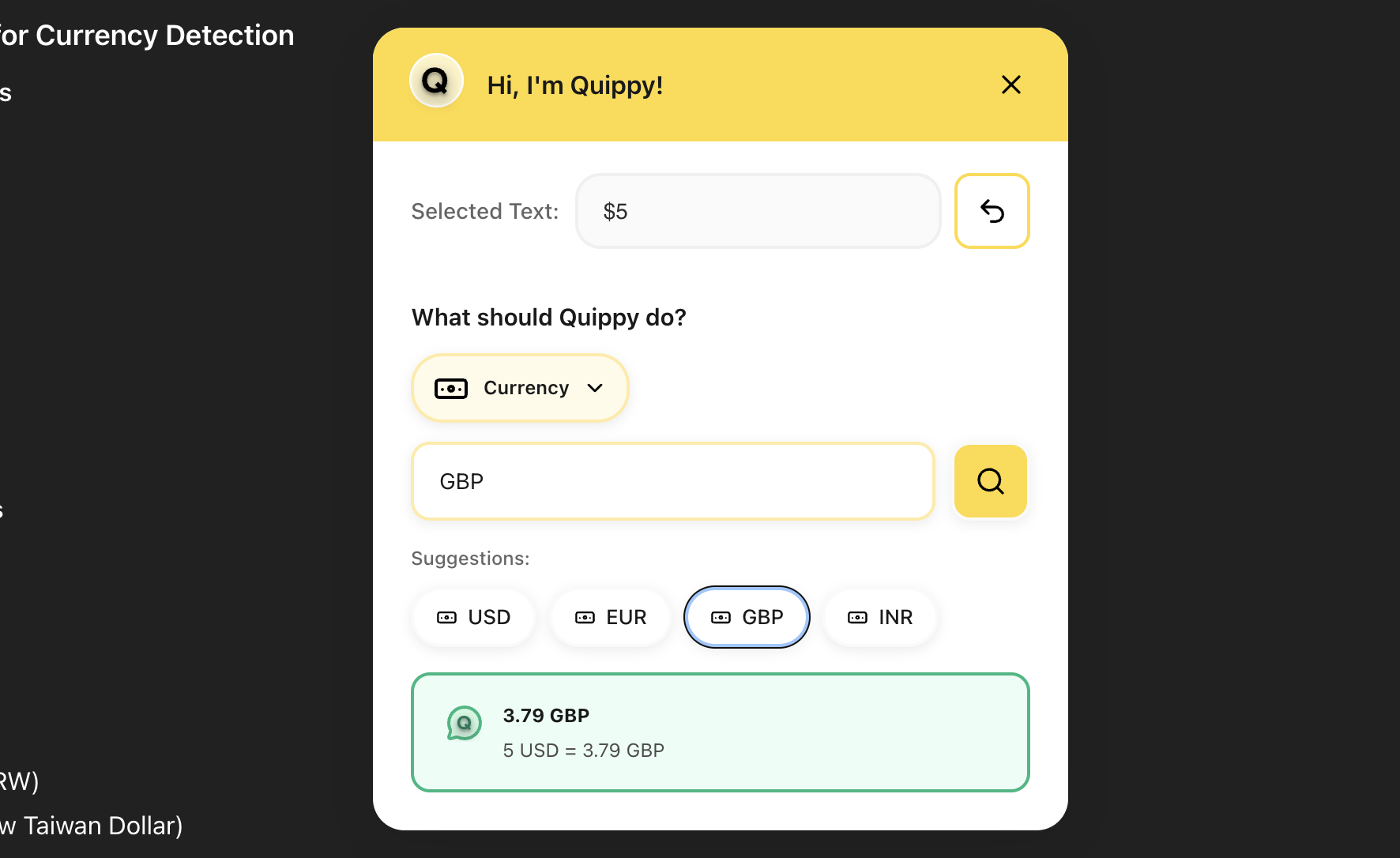
Currency Conversion

Convert between 150+ currencies with real-time exchange rates. Supports amounts with currency codes (e.g., "100 USD to EUR") or standalone numbers.

UX Consideration:
  • Real-time rates across 150+ currencies, cached to cut network calls
  • Parses "100 USD", "$100", or "100 dollars" alike, and remembers your last pair
🌡️

Temperature Conversion

Convert between Celsius, Fahrenheit, and Kelvin with automatic unit detection.

UX Consideration:
  • Auto-detects units in text (25°C, 77°F) and shows all three scales at once
  • Built for international communication and scientific work
🎨

Design

Convert between design units like pixels, points, ems, rems, and calculate screen dimensions and aspect ratios.

UX Consideration:
  • Converts px, pt, em, rem, and parses resolutions like "1920x1080" or "4K"
  • Shows physical dimensions, PPI, and aspect ratio for device testing

Universal Compatibility

Quippy works on every website — Gmail, Docs, Slack, LinkedIn, news sites, anywhere you browse. Content scripts inject seamlessly without touching site functionality, so it's ready the moment you select text.

Privacy & Security by Design

Quippy collects no user data. Conversions run locally or through secure HTTPS APIs (Google Translate, Exchange Rate API) — no tracking, no analytics, no stored queries. It requests only the permissions it needs: "activeTab" and "storage" for preferences.

Development & Implementation

With no prior extension development experience, I treated this as a learning project — using ChatGPT and Claude as coding partners to turn my Figma designs into working code, while I focused on UX decisions and picked up Chrome Extension APIs along the way.

Development Approach

  • Started with Chrome Extension Manifest V3 documentation to understand architecture
  • Built a minimal working prototype (one function) to prove the concept
  • Iteratively added features one at a time, testing each thoroughly
  • Used AI assistants to explain unfamiliar concepts and debug issues
  • Followed accessibility guidelines (WCAG 2.1) throughout development

Technical Implementation

Chrome Extension Manifest V3: Modern extension architecture with improved security and performance
Content Scripts: Injects into every page to detect text selection and render the popup, without touching page functionality
Background Service Workers: Handle API calls, manage state, and coordinate between tabs efficiently
Local Storage: Stores user preferences and caches API responses for speed
API Integration: Real-time data via ExchangeRate-API for currencies, Google Translate API for translations, Dictionary API for word definitions
Keyboard Event Handling: Custom implementation of Ctrl+Shift+Q / Cmd+Shift+Q that doesn't conflict with browser shortcuts
CSS Isolation: Shadow DOM prevents Quippy's styles from conflicting with host website styles and vice versa
Error Handling: Graceful fallbacks for network failures, invalid inputs, and API rate limits

Technical Design Decision: Shadow DOM for Style Isolation

The Challenge:

Host-site CSS could interfere with Quippy's design, and vice versa — a global style like "div { background: red; }" could break the popup entirely.

The Solution:

Shadow DOM isolates Quippy's HTML and styles in their own protected scope, keeping its appearance consistent everywhere without ever touching the host page's layout.

Trade-off:

Adds implementation complexity, but guarantees reliability — without it, Quippy could look broken on any given site.

Testing, Issues & Iterations

After each feature, I tested in Chrome's developer mode and then used Quippy daily across the sites I actually work in — Gmail, Slack, Docs, LinkedIn, news, documentation. Real-world use surfaced issues controlled testing never would have.

Testing Approach

  • Chrome Developer Mode: Loaded unpacked extension for rapid iteration and debugging
  • Real-World Usage: Used Quippy as my primary tool for 2 weeks to experience actual pain points
  • Cross-Site Testing: Verified functionality on 20+ different websites with varying layouts and CSS
  • Edge Case Exploration: Deliberately tried unusual inputs to test error handling
  • Performance Monitoring: Tracked load times, API response times, and memory usage

Critical Issues Discovered & Resolved

UX Issue
Selected Text Workflow Needed Flexibility
Problem: The initial design locked the input after selection, but users often needed to tweak it — fixing typos, removing stray characters, adjusting numbers.
Solution: Made the input pre-filled but fully editable, so corrections don't require re-selecting.
Impact: Removed frustration on imperfect selections without slowing anything down.
Usability Issue
Country Code Confusion in Timezone Feature
Problem: Showing country codes (IN, US, GB) instead of names made it hard to scan for the right timezone quickly.
Solution: Switched to full country names, with abbreviations shown smaller, and made the dropdown searchable.
Impact: Faster, easier scanning — and positive feedback from test users.
Functional Bug
Translation vs. Dictionary Mode Conflict
Problem: Translating a single word into English, users expected a dictionary lookup, not a literal translation — but the feature couldn't tell the difference.
Solution: Detect single-word input targeting English and auto-switch to dictionary mode, with a manual toggle for true translation.
Impact: One interface now covers both, with no manual switching required.
Feature Enhancement
Limited Dictionary Information
Problem: The initial dictionary only showed basic definitions — writers and students needed synonyms, antonyms, and examples too.
Solution: Integrated the Free Dictionary API and redesigned results to group definitions by part of speech, with synonyms and examples in expandable sections.
Impact: Turned a basic lookup into a full reference — no more separate dictionary tabs.
Compatibility Issue
Keyboard Shortcut Platform Differences
Problem: The shortcut only worked on Windows (Ctrl) — Mac users (Cmd) were locked out entirely.
Solution: Detect the platform automatically and switch between Ctrl and Cmd, with the UI showing the correct shortcut.
Impact: Zero-config cross-platform support — Mac users included.
Format Recognition
Timezone Format Parsing Gaps
Problem: Gmail and calendar formats like "8:30 PM UTC+5:30" weren't recognized, forcing users to retype timezone info manually.
Solution: Extended the parser to cover UTC offsets, city and country names, abbreviations, and mixed email-client formats.
Impact: Users can now select a timezone straight from an email and convert it instantly — the exact workflow that inspired Quippy.
Performance Issue
API Call Overhead for Currency Rates
Problem: Making API call for every currency conversion created network delays (500-1000ms) and quickly hit rate limits.
Solution: Cache all rates once an hour in local storage, with a visible timestamp — cutting calls from hundreds a day to about 24.
Impact: Instant conversions (0ms delay), better user experience, never hit rate limits, reduced server load.

Final Interface & Key Screens

Below are key screens showing Quippy in action across different functions and use cases.

Launch & Impact

Quippy launched on the Chrome Web Store in November 2024 and has since been validated through real-world use across designers, developers, writers, marketers, and business professionals.

Early Metrics & Feedback

14
Core Functions
0ms
Load Time Impact
100%
Website Compatibility
Zero
Data Collection

What I Learned

Design systems enable speed: a comprehensive Figma system before coding meant I focused on functionality, not visual decisions, during the build.
Real-world testing is irreplaceable: 80% of my UX improvements came from daily use, not controlled testing.
AI as development partner: ChatGPT and Claude let me build real functionality despite limited JavaScript experience — the key was asking specific questions and iterating fast.
Simplicity beats features: I cut a planned 20+ functions down to 14 well-executed ones — fewer, better beats more, half-baked.
Platform constraints shape design: Chrome's limitations around Shadow DOM and permissions forced solutions that made the product better.
Context awareness is everything: the features that succeeded most (dictionary toggle, timezone parsing) anticipated intent instead of requiring instruction.

Future Enhancements

Based on usage patterns and user feedback, I've identified the following roadmap:

Personalization: remember default currencies, units, languages, and frequent functions
Conversion history: a local, shortcut-accessible log for quick reference
Dark mode: automatic, matched to system preference, with manual override
Custom themes: user-defined colors and fonts
Editable results: chain conversions by making result text selectable
More conversions: data storage, speed, pressure, energy — based on requests
Offline mode: core conversions work without a connection
Multi-browser: Firefox, Edge, and Safari versions
Developer API: let other extensions tap into Quippy's conversions
Power shortcuts: direct function triggers, e.g. Ctrl+Shift+C for currency

Reflection & Key Takeaways

Building Quippy from prototype to live product walked me through the full lifecycle — research, design, development, testing, and launch. It reinforced that good UX isn't about adding features, it's about removing friction: every decision, from the keyboard shortcut to smart context detection, aimed to eliminate one more click between a user and their goal.

Most of all, it proved that designers can build real products. With AI tools as development partners, the line between "designing" and "building" is thinner than it used to be. I use Quippy dozens of times a day — and every Ctrl+Shift+Q is a reminder that solving your own problem well tends to help others too.

Try Quippy

Available now on the Chrome Web Store. Install it, select any text, press Ctrl+Shift+Q, and experience workflow without friction.

View on Chrome Web Store →